
Using Elevate (EdPotential's Alerting System)
EdPotential Elevate provides you with timely, integrated alerts, enabling proactive intervention in order to elevate student outcomes.
Our first phase is complete: in-platform alerts based on saved searches are now live! To set up an alert you need to first create a saved search.
Create a Saved Search
- Choose the group of students
To bookmark a group of students that you can quickly view when you log in to EdPotential, first choose the group of students.
You can select students using the demographic, attendance and NCEA filters. For example, you may choose all Year 11 students with attendance between 80% and 90%.
- To save the filters you have selected click on Saved searches.

- Name the search and click on Save Search

Create an Alert
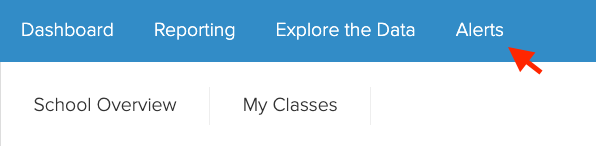
- To create an alert navigate to the Alerts tab.
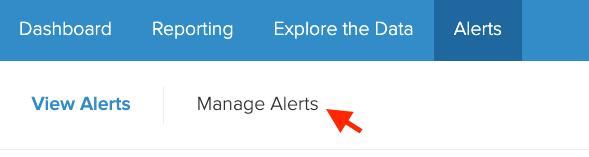
- Go to Manage Alerts.
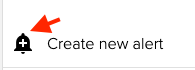
- Click on the bell icon to create a new alert
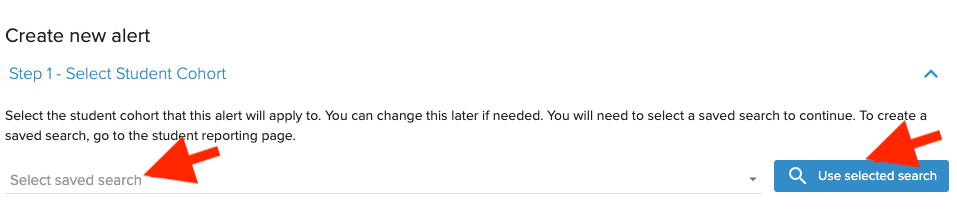
- Choose the group of students by selecting a saved search
- Click on Use selected search
- Choose the alert type from the given options
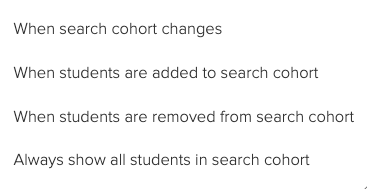
- If you want an alert only when the search cohort has changed, for example, there are new students with the selected level of attendance, but you still want to see the list of all students, tick Always show all students in notifications
- Click on Use selected type

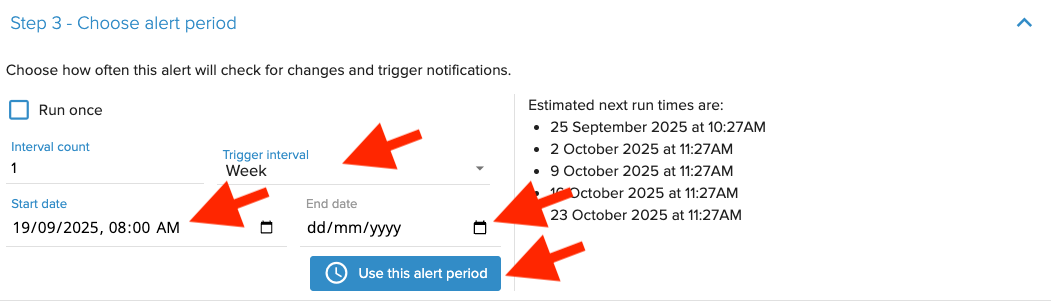
- Schedule the frequency of notifications, for example, weekly
- Choose the start day and time
- You may choose to select an end date
- Click on Use this alert period
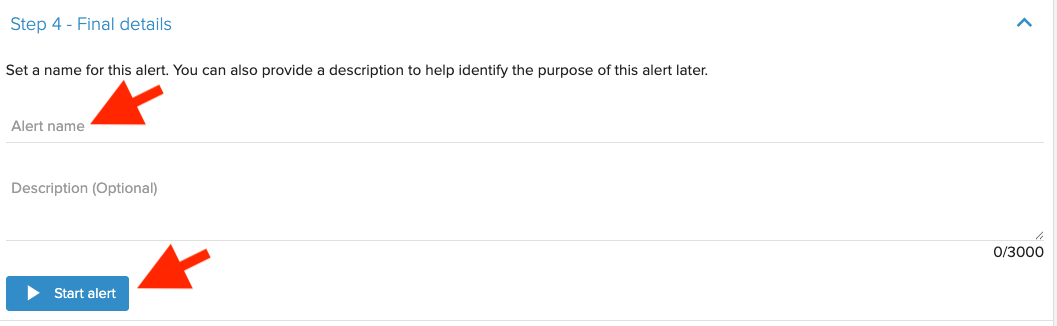
- Set a name for the alert
- You may choose to add a description
- Click on Start alert
View an Alert
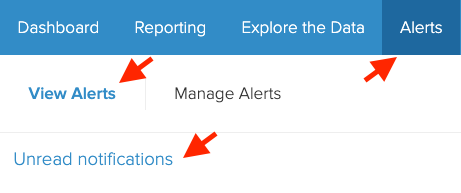
Log in to EdPotential each day, week or month to view your alerts
- Navigate to Alerts
- Your alerts will be visible in Unread notifications
This is just Phase 1 of EdPotential Elevate. Coming next will be more alert options including receiving alerts by email. Stay tuned to this exciting channel!
Examples
| Teacher Role | Saved Search | Alert Type | Follow-Up Action |
| HoD / HoLA | Y13 no UE literacy | Always show all students in search cohort | Follow up on what each student requires |
|
|
Y11, no numeracy requirement | Always show all students in search cohort | Follow up on what each student requires |
| Dean / Pastoral leader | Y13, 2 possible approved subjects | When students are added to search cohort | Follow up on any failed standard |
|
|
Y11, attendance less than 80% | When students are added to search cohort | Follow up on recent attendance |
| Tutor / Whānau leader | Your tutor group, passed NCEA certificate e.g. Y12 passed Level 2 | When students are added to search cohort | Celebrate that they’ve achieved this |
|
|
Your tutor group, attendance 90% - 100% |
When search cohort changes | Celebrate with students new to this cohort. Follow up with students removed. |